Tutorial: a to-do app
1. A window and a page
Every Kirigami app starts the same way, with a window that shows a page. Twenty lines get you a real, resizable app window with a title bar.
Kirigami.ApplicationWindowKirigami.ScrollablePage
Put this in main.qml:
import QtQuick
import QtQuick.Controls as QQC2
import org.kde.kirigami as Kirigami

Kirigami.ApplicationWindow {
    id: root

    title: "Tasks"
    width: Kirigami.Units.gridUnit * 24
    height: Kirigami.Units.gridUnit * 28

    pageStack.initialPage: Kirigami.ScrollablePage {
        title: "Tasks"

        QQC2.Label {
            text: "Nothing here yet."
        }
    }
}
Run it with qml6 main.qml.
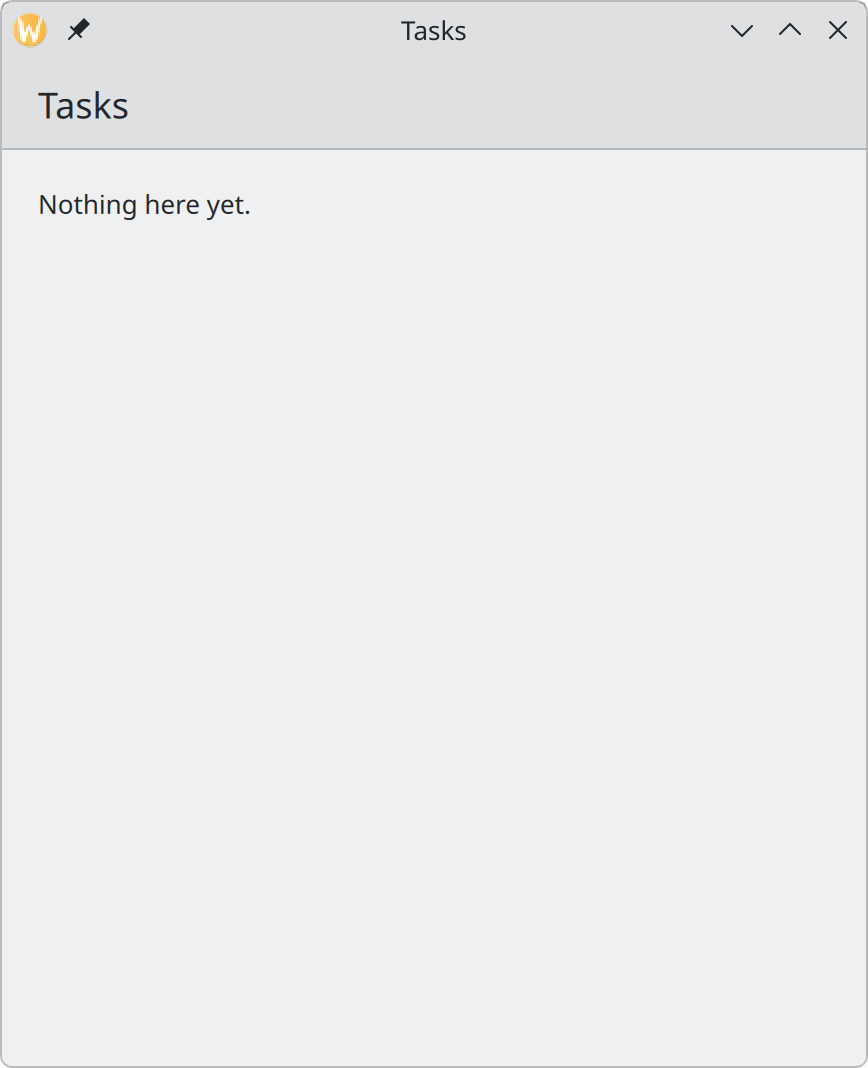
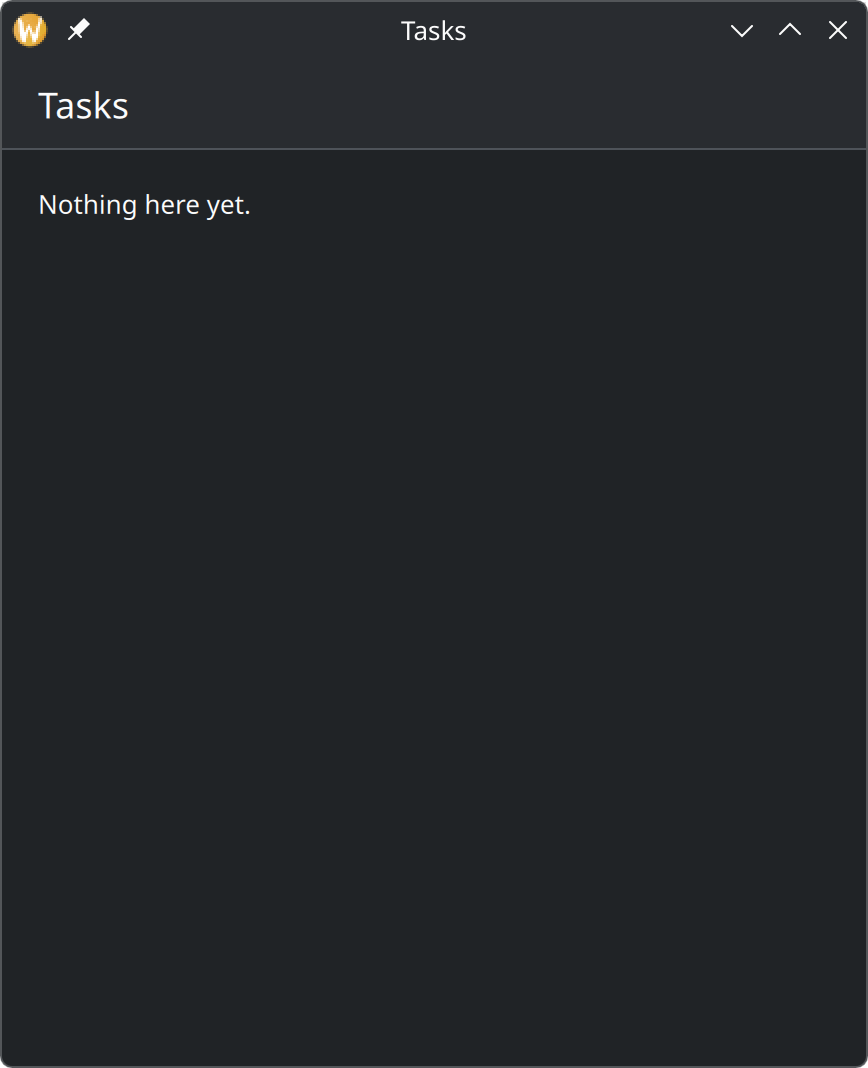
- The page’s
title, drawn in a header that Kirigami provides. - The page’s content: for now, one label.
What each part does
The imports make three sets of components available. QQC2 and Kirigami are short names chosen
here; everything from Qt Quick Controls is then written QQC2.Something, everything from Kirigami
Kirigami.Something. See Introduction.
Kirigami.ApplicationWindow is the window. An app has exactly one. The id: root gives it a name that
other parts of the file can use to refer to it; we will need that from step 3.
title on the window is what the window manager shows in the title bar and the task switcher.
width and height set the size the window opens at. They are written in grid units instead of
pixels, so the window is larger for someone who uses a larger font. See
Spacing and units.
pageStack.initialPage is the page shown at start. A window shows pages; a page has a title and content.
Kirigami.ScrollablePage is a page whose content may be longer than the window. A task list can grow
without limit, so this is the right kind. See Pages.
QQC2.Label is a piece of text. It is a stand-in; the next step replaces it with the list.