Patterns
Feedback and status
How to tell people what happened, what is happening, and what went wrong, using the quietest means that still gets the message across.
Say less
The best status message is none. When something works, the result is the message: the file is in the list, the switch is on, the page changed. Reserve explicit messages for things people could not otherwise know.
When you do need to say something, pick the least disruptive channel that fits:
| What happened | Channel | How |
|---|---|---|
| A small thing succeeded and the result is visible | Nothing | |
| A small thing happened that could be missed | Passive notification: a short line that fades by itself | showPassiveNotification() |
| Something needs attention, maybe action | Inline message: stays until dealt with | Inline messages |
| The app cannot continue without an answer | Dialog | Dialogs |
| Something happened while the app was not in view | System notification | KNotifications |
Do not use system notifications for things that happen while the user is looking at your window; they already see it. And do not keep a system tray icon around as a way to stay visible; the guidelines call the tray a last resort, shown only when something unusual needs attention and no window is open.
Undo instead of asking
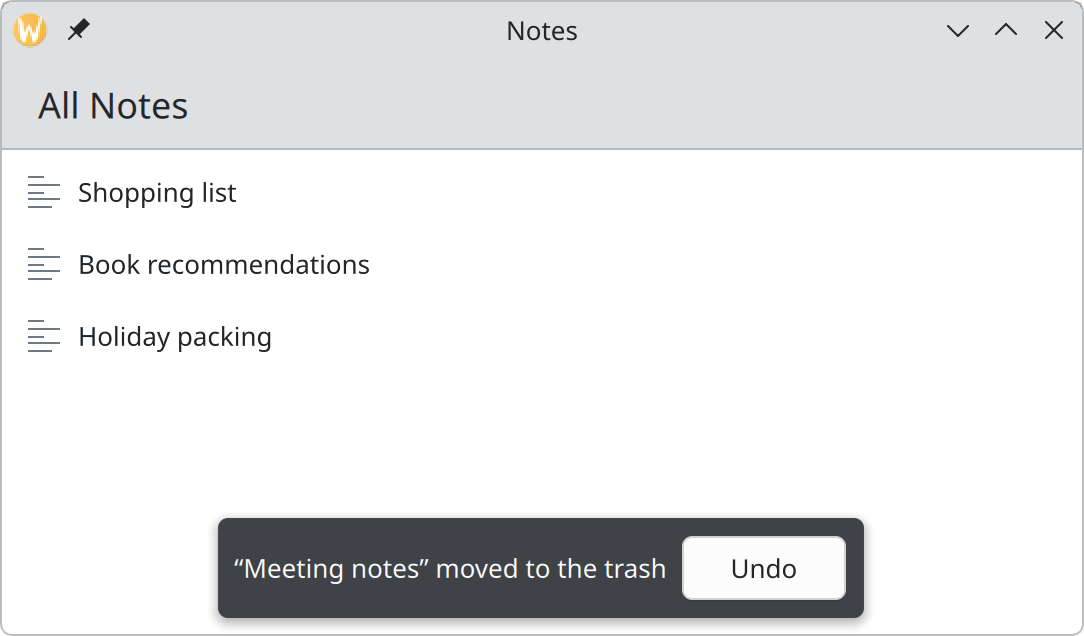
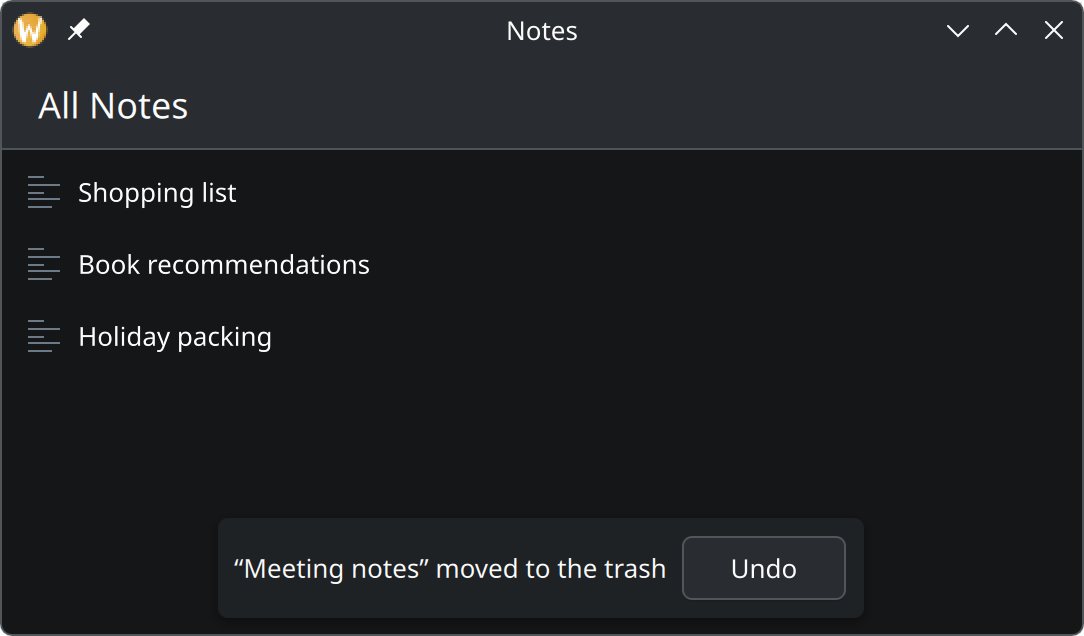
Show the QML for this example
import QtQuick
import QtQuick.Controls as QQC2
import org.kde.kirigami as Kirigami

Kirigami.ApplicationWindow {
    id: root
    title: "Notes"
    width: Kirigami.Units.gridUnit * 30
    height: Kirigami.Units.gridUnit * 16

    pageStack.initialPage: Kirigami.ScrollablePage {
        title: "All Notes"

        ListView {
            currentIndex: -1
            model: ["Shopping list", "Book recommendations", "Holiday packing"]

            delegate: QQC2.ItemDelegate {
                required property string modelData
                width: ListView.view.width
                text: modelData
                icon.name: "text-x-generic"
            }
        }
    }

    // Do the thing at once, then offer a way back for a few seconds.
    Component.onCompleted: root.showPassiveNotification(
        "“Meeting notes” moved to the trash", "long", "Undo", () => {})
}
Asking “Are you sure?” before every deletion trains people to click Yes without reading. It is better to do what was asked and make it easy to take back.
- The easier something is to remove, the easier it must be to restore.
- Move things to the trash instead of deleting them outright.
- Offer Undo for any removal that would be tedious to redo by hand. If the deletion truly has to be final, delay it: remove the item from view, and only delete for real once the chance to undo has passed.
- The undo offer must not block anything. A passive notification suits small losses, because it disappears after a few seconds. For something serious, such as deleting files, use an inline message, which stays until dismissed.
- Keep confirmation dialogs for actions that cannot be undone at all.
// text, how long to show it, button label, what the button does
applicationWindow().showPassiveNotification(
    "“Meeting notes” moved to the trash", "long", "Undo",
    () => notesModel.restore(note))
When something goes wrong
In order of preference:
- Make the error impossible, or recover from it without bothering anyone.
- Describe the problem and offer a button that fixes it.
- Describe the problem and say how to proceed.
- Describe the problem. Only when truly nothing can be done.
Two things are never acceptable: showing technical gibberish, and failing silently. See Inline messages for how to word and show an error.
While something is happening
Show progress for anything that takes longer than about a second.
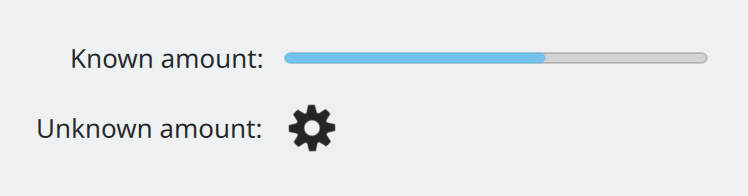
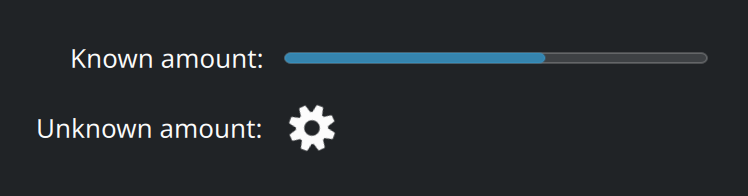
Show the QML for this example
import QtQuick
import QtQuick.Layouts
import QtQuick.Controls as QQC2
import org.kde.kirigami as Kirigami

GridLayout {
    columns: 2
    columnSpacing: Kirigami.Units.largeSpacing
    rowSpacing: Kirigami.Units.largeSpacing

    QQC2.Label {
        text: "Known amount:"
        Layout.alignment: Qt.AlignRight
    }
    QQC2.ProgressBar {
        Layout.preferredWidth: Kirigami.Units.gridUnit * 12
        from: 0
        to: 100
        value: 62
    }

    QQC2.Label {
        text: "Unknown amount:"
        Layout.alignment: Qt.AlignRight
    }
    QQC2.BusyIndicator {
        running: true
        implicitWidth: Kirigami.Units.iconSizes.medium
        implicitHeight: Kirigami.Units.iconSizes.medium
    }
}- Prefer a real measure. If you know how many items or how much time is left, show a determinate bar, and say the numbers (“312 of 840”). Plain technical detail is welcome here.
- Use a spinner only when you cannot know.
- For a view that is still loading, put a
Kirigami.LoadingPlaceholderwhere the content will appear. - For work the user started that continues in the background, show progress on the app’s Task Manager icon.
See Progress and loading.
Colour as a signal
Blue highlights, orange warns, red means error or danger. Use them sparingly, and never alone: always add an icon or words. See Colour.
Where this comes from
This page restates the upstream KDE documentation in plainer words and adds pictures. When the two disagree, upstream wins.